
- Home
- About us
- Products
- for Siemens
- Agricultural Terminal
- for A-B-B
- Advantech
- Allen Bradley
- AMTouch
- B&R Power Panel
- BECKHOFF HMI operator Repair
- Beijer HMI
- Bosch Rexroth
- Danielson Touch Screen Replacement
- Delem
- Delta
- DMC
- EATON Micro Panel
- ELO Touch Screen Panel
- ESA HMI
- Exor UniOP
- EZ Automation
- Fagor
- Fuji Hakko
- GE Fanuc
- GUNZE Touch Panel
- IDEC
- Koyo
- KUKA SmartPAD
- Lenze
- Microtouch 3M Versatouch touch screen
- Mitsubishi
- Omron
- Panasonic
- Parker
- Proface
- Red Lion
- Robotic Controller
- Schneider
- Sigmatek HMI
- Ventilator Parts
- Weinview
- Other Terminal Brand
- HMI Touch Screen Panel
- Touch Panel Screen Suppliers
- Touch Screen Panel supplier
- Auxiliary Accessories
- LCD Display
- test11
- Faqs
- News
- Certificate
- Contact us
Troubleshooting Siemens OP17: Common Faults and Solutions
Troubleshooting Siemens OP17: Common Faults and Solutions
Table of Contents
- 1. OP17 Keypad Not Working or Keys Unresponsive
- 2. Entering Transfer Mode or Reset Procedure for OP17
- 3. OP17 Frozen After Restore or Startup Freeze
- 4. OP17 DP-12 Communication or Transfer Setup Issues
- 5. ProSave Backup or Transfer Mode Errors on OP17
- 6. OP17 Warning Light Stuck or Persistent Error Screen
- 7. OP17 Upload Program or Transfer Failure
- 8. Siemens OP17 Repair for Panel Series Hardware Failures
- 9. OP17 Ready for Transfer Mode Boot Method
- 10. OP17 Keypad or Display Hardware Failures
- Conclusion
- References
As a leading provider of HMI repair parts and solutions, Vicpas has over 20 years of experience helping industrial operators maintain and repair legacy systems like the Siemens OP17. The Siemens OP17 is a robust operator panel widely used in automation environments, but like any HMI device, it can encounter faults over time due to wear, configuration issues, or hardware failures.
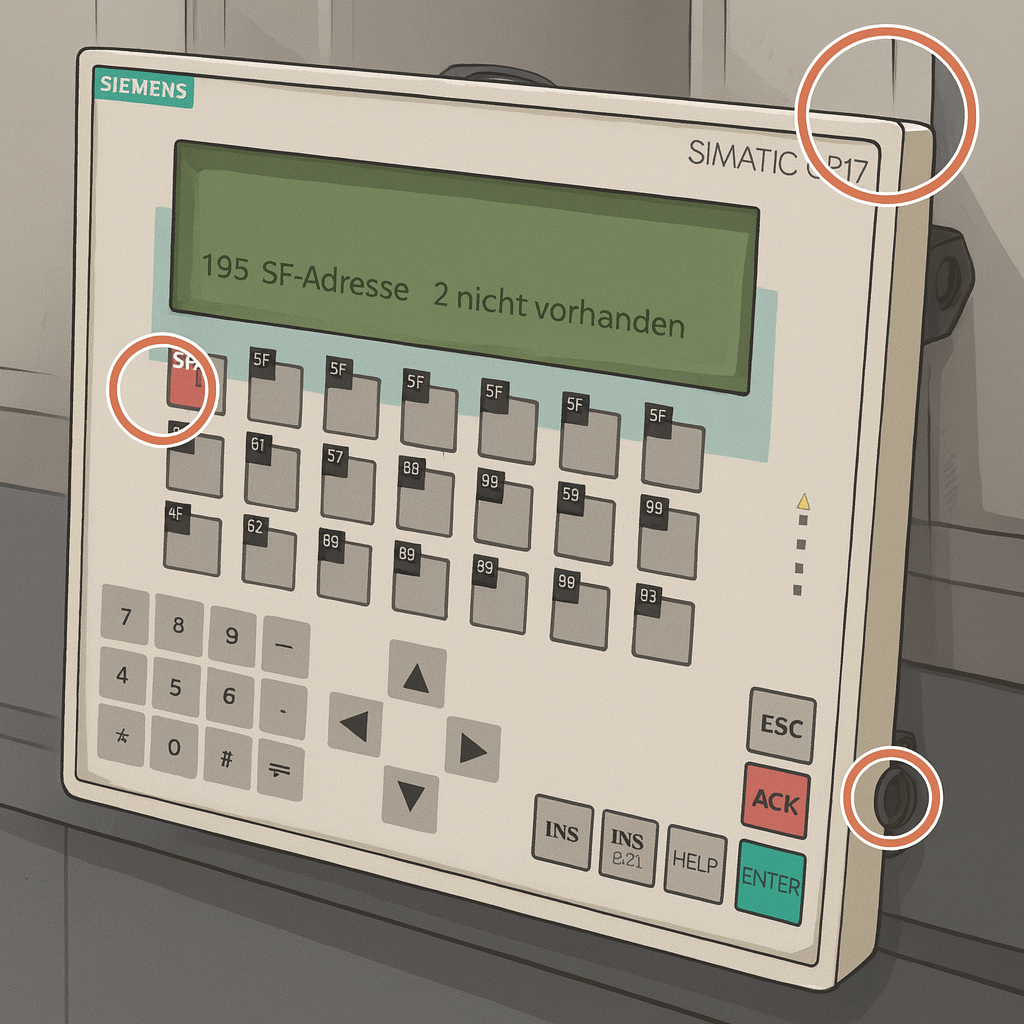
1. OP17 Keypad Not Working or Keys Unresponsive
One of the most frequent issues with the Siemens OP17 is keypad unresponsiveness, where keys fail to register inputs. This can stem from physical wear, dust accumulation, or membrane damage after prolonged use in harsh industrial environments.
Common Causes
- Membrane keypad degradation due to repeated pressing or exposure to chemicals.
- Loose internal connections or faulty ribbon cables.
- Software glitches locking the interface.
Solutions
- Clean and Inspect: Power off the unit and gently clean the keypad with isopropyl alcohol and a soft cloth. Avoid abrasive materials to prevent further damage.
- Reset the Device: Hold the reset button (if available) or cycle power while pressing specific keys to enter diagnostic mode.
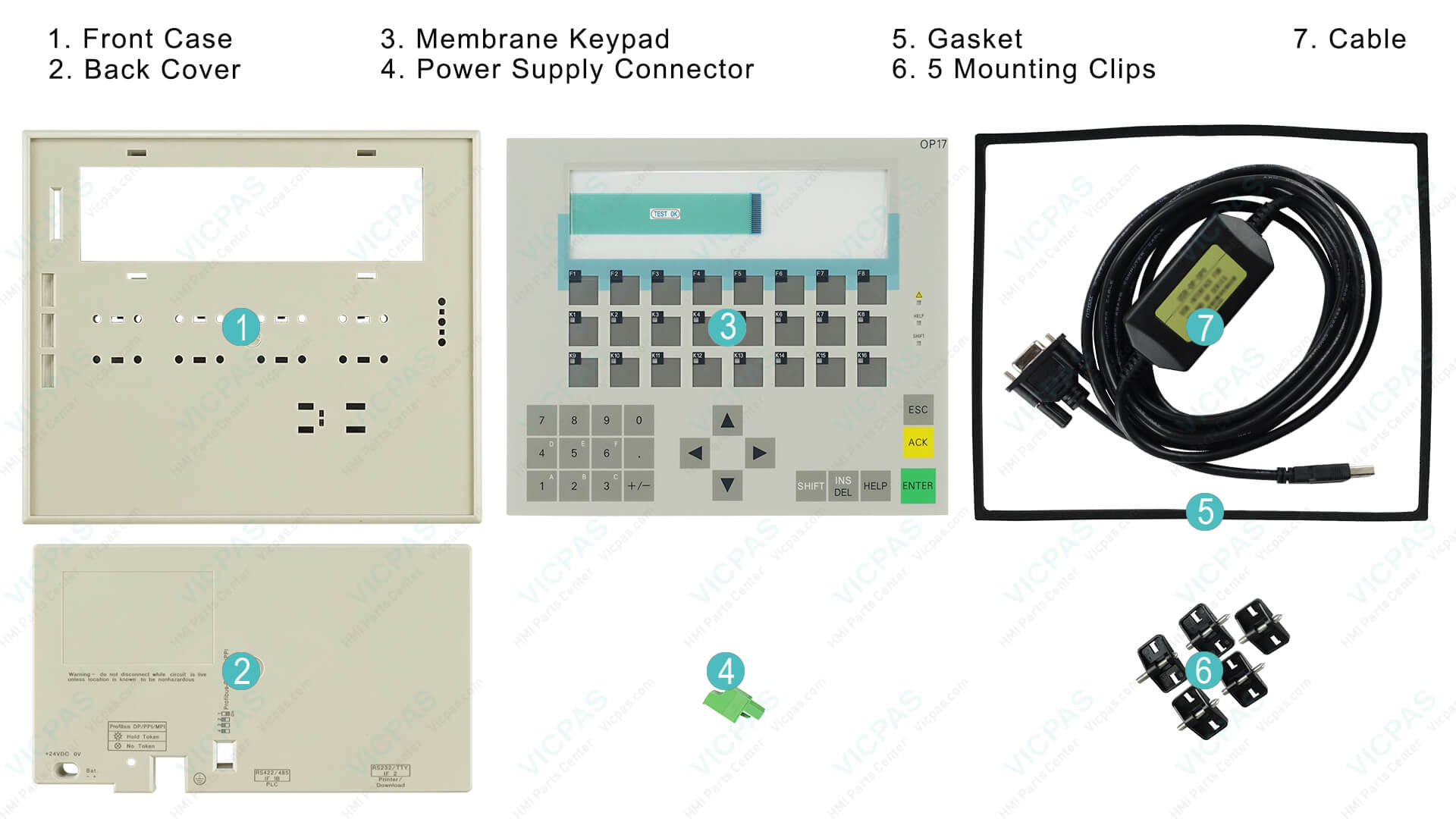
- Replace the Keypad: If cleaning doesn't help, opt for a replacement membrane keypad. At Vicpas, we offer durable, OEM-compatible Siemens OP17 keypads with a 1-year warranty and fast global shipping. Visit our product search →
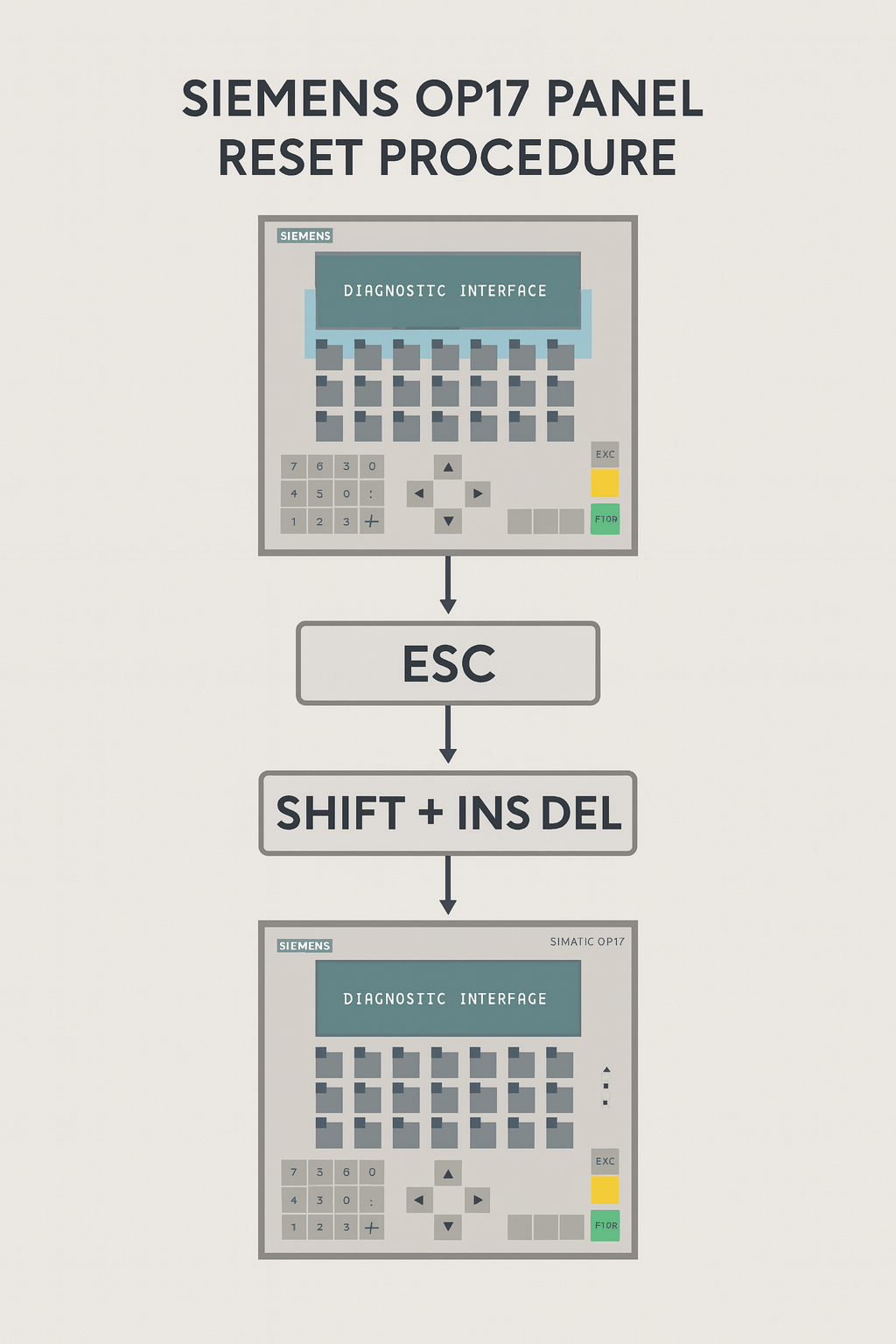
If the issue persists, it may indicate deeper hardware failure — contact Vicpas for expert repair services detailed on our company page: Learn more about Vicpas →
2. Entering Transfer Mode or Reset Procedure for OP17
Accessing transfer mode on the Siemens OP17 is essential for backups, uploads, or firmware updates, but users often struggle with the exact sequence, especially on older units.
Common Causes
- Incorrect key combinations during boot.
- Configuration mismatches between the HMI and connected PC.
- Firmware corruption preventing mode entry.
Solutions
- Standard Procedure: Power off the OP17, then power on while holding the "Down" arrow and "Enter" keys simultaneously. The screen should display "Ready for Transfer."
- Using ProSave Software: Connect via serial cable (DB9 to DB15) and select serial transfer in ProSave. Ensure baud rate is set to 9600 for compatibility.
- Troubleshoot Entry Failures: If it fails, erase flash memory by holding "Down" + "+" during boot, then "Esc" to confirm. This resets configurations but preserves core data.
- For reliable cables and adapters tailored to Siemens OP17, Vicpas provides customized solutions with no minimum order — explore our offerings →
3. OP17 Frozen After Restore or Startup Freeze
Post-restore freezes on the Siemens OP17 often occur when restoring backups, leaving the panel stuck at the startup screen.
Common Causes
- Incompatible backup files or partial restores.
- Memory sector damage from frequent resets.
- Power supply fluctuations during the process.
Solutions
- Verify Backup Integrity: Before restoring, test the file in ProSave simulation mode.
- Full Reset and Reload: Enter transfer mode, erase memory, and reload a verified program. Use a stable power source to avoid interruptions.
- Hardware Check: Inspect for damaged capacitors or boards. If needed, replace the display or mainboard with Vicpas parts, backed by our 20+ years of HMI expertise. Browse replacement parts →
4. OP17 DP-12 Communication or Transfer Setup Issues
Communication failures with DP-12 protocols on the Siemens OP17 can halt data transfers, often showing errors like "OP Not Networked."
Common Causes
- Mismatched baud rates or protocol settings (e.g., MPI vs. serial).
- Faulty cables or adapters.
- Network module interference.
Solutions
- Configure Settings: In ProTool/ProSave, set to serial mode with 9600 baud, 8N1 parity.
- Cable Verification: Use a tested DB9-DB15 cable with proper pinouts (RxD to TxD crossover).
- Disable Modules: Remove any MPI add-ons if using serial; switch to MPI mode if needed with 187.5 kbps baud.
- Vicpas specializes in compatible communication accessories for Siemens OP17 — find them here →
5. ProSave Backup or Transfer Mode Errors on OP17
Errors during ProSave backups, such as aborted transfers, are common on the Siemens OP17.
Common Causes
- Baud rate mismatches or electrical noise.
- Software version incompatibilities.
- Limited flash write cycles exceeded.
Solutions
- Reduce Baud Rate: Try 4800 baud for noisy environments.
- Update Software: Ensure ProSave matches the OP17 firmware.
- Alternative Tools: Use Siemens service tools for stubborn cases.
- For backup solutions and replacement memory modules, trust Vicpas' global supply chain — shop now →
6. OP17 Warning Light Stuck or Persistent Error Screen
Persistent warning lights or error screens on the Siemens OP17 indicate unresolved machine errors.
Common Causes
- Lingering PLC errors not cleared.
- Sensor or connection faults.
- Display hardware issues.
Solutions
- Clear Errors: Access the error log via menu and reset alarms.
- PLC Check: Verify connected PLC for faults.
- Screen Replacement: If stuck, replace the display unit from Vicpas. View available displays →
7. OP17 Upload Program or Transfer Failure
Failures in uploading programs to the Siemens OP17 often mirror download issues.
Common Causes
- Configuration conflicts.
- Cable faults.
- Memory corruption.
Solutions
- Follow transfer mode entry and use verified settings.
- Test with alternative cables from Vicpas.
- Get compatible transfer cables →
8. Siemens OP17 Repair for Panel Series Hardware Failures
Hardware failures in the OP17 series require professional repair or component replacement.
Common Causes
- Age-related component wear.
- Environmental damage (dust, moisture, vibration).
Solutions
- Professional diagnostic testing.
- Part replacements from reliable sources like Vicpas.
- Contact Vicpas for repair support →
9. OP17 Ready for Transfer Mode Boot Method
Booting into transfer mode reliably is a critical step for most maintenance tasks on the Siemens OP17.
Solutions
- Key sequence during power-on: Hold "Down" + "Enter" while powering on.
- Software initiation via ProSave when connected properly.
- Use Vicpas-tested cables to ensure stable connection — shop accessories →
10. OP17 Keypad or Display Hardware Failures
Similar to keypad issues, display failures (blank screen, flickering, dead pixels, etc.) are common in aging Siemens OP17 units.
Solutions
- Replace faulty display modules or complete front panels.
- Source high-quality replacement parts from Vicpas with 1-year warranty.
- Browse Siemens OP17 replacement parts →
Conclusion
Troubleshooting the Siemens OP17 requires a blend of software know-how and hardware expertise. At Vicpas, we're committed to providing top-tier repair parts and support for your HMI needs. With our 1-year warranty, fast global shipping, and customized solutions, you can minimize downtime and keep your systems running smoothly.
References
- Siemens Forum – Backup OP17 DP with key non-functional
- Siemens Forum – Enter file transfer mode to back up
- Siemens Forum – Frozen after restore at startup page
- Siemens Forum – OP17 DP-12 communication issues
- Siemens Forum – ProSave backup / transfer mode errors
- Siemens Forum – Warning light stuck / persistent error
- Siemens Forum – Upload program / transfer failure
- Facebook Group – Siemens OP17 repair & hardware failures
- Reddit – OP7/OP17 transfer mode discussion
- Industrial Monitor Direct – Stuck in ready for transfer mode